ProfExam Simulator 10.22.0.0 is out. We have redesigned the home screen and every window, translated the interface into five languages, and added a mode that helps you work on your weak spots before the exam. Here's what's new.
A new home screen
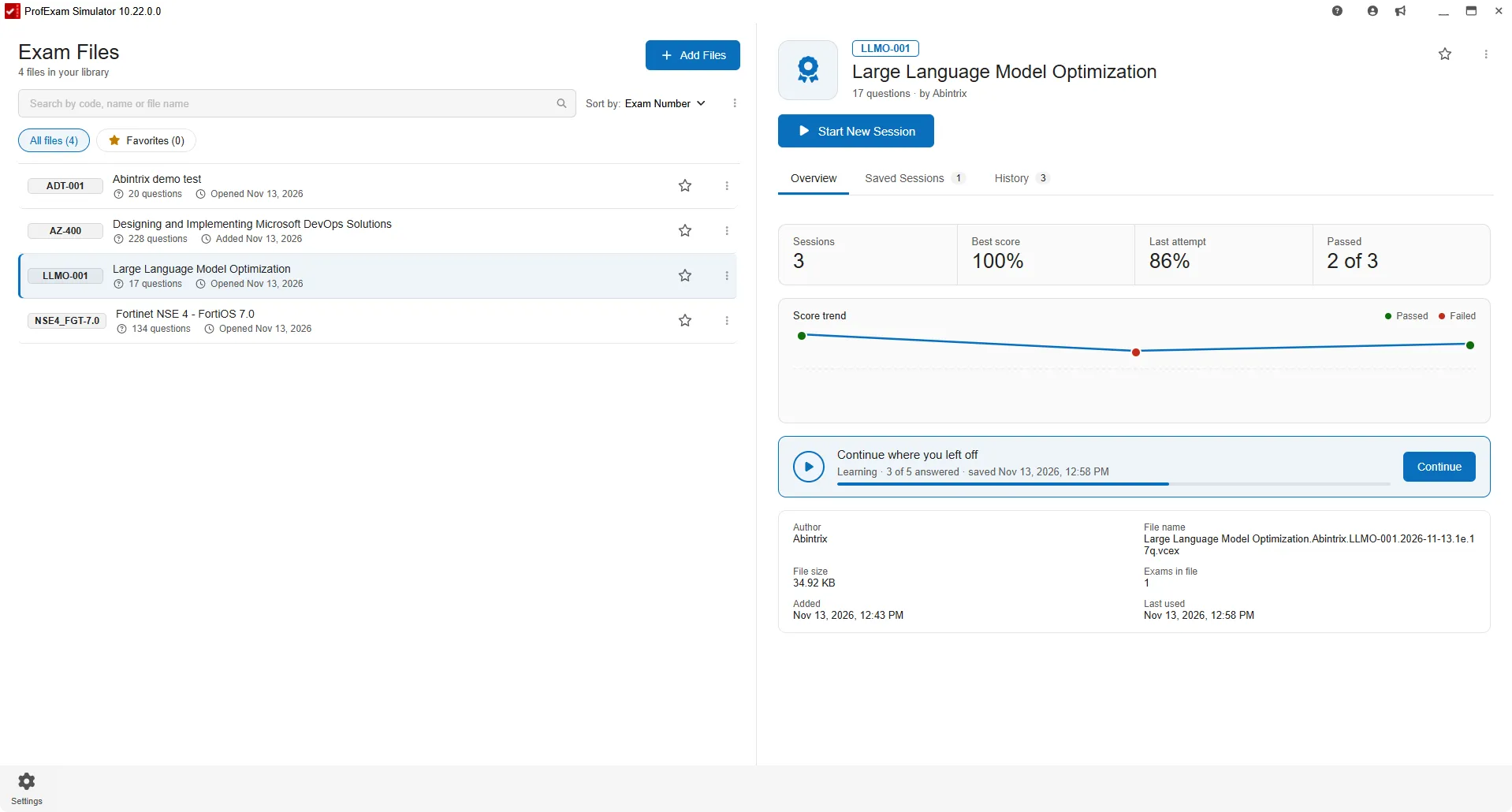
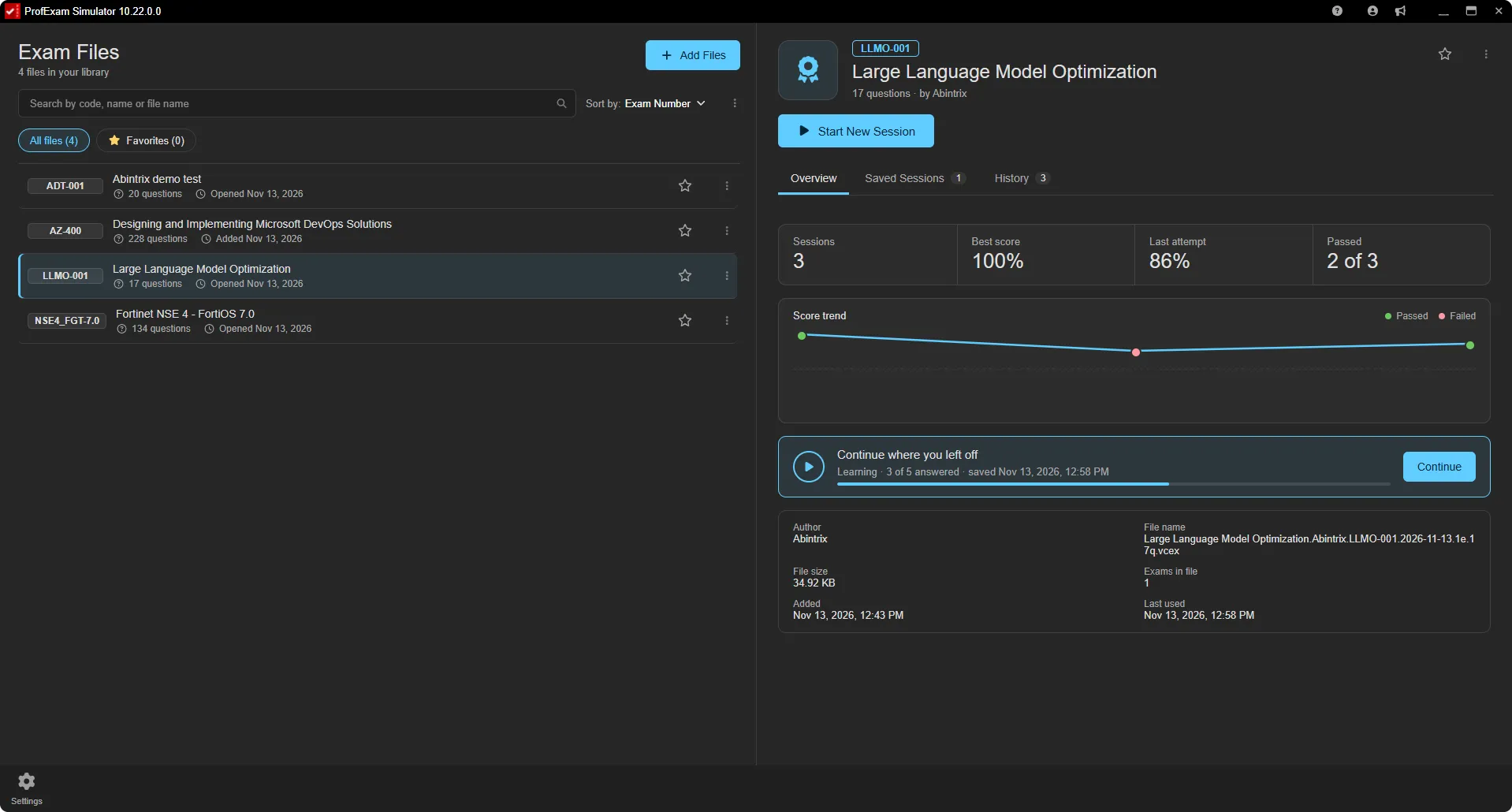
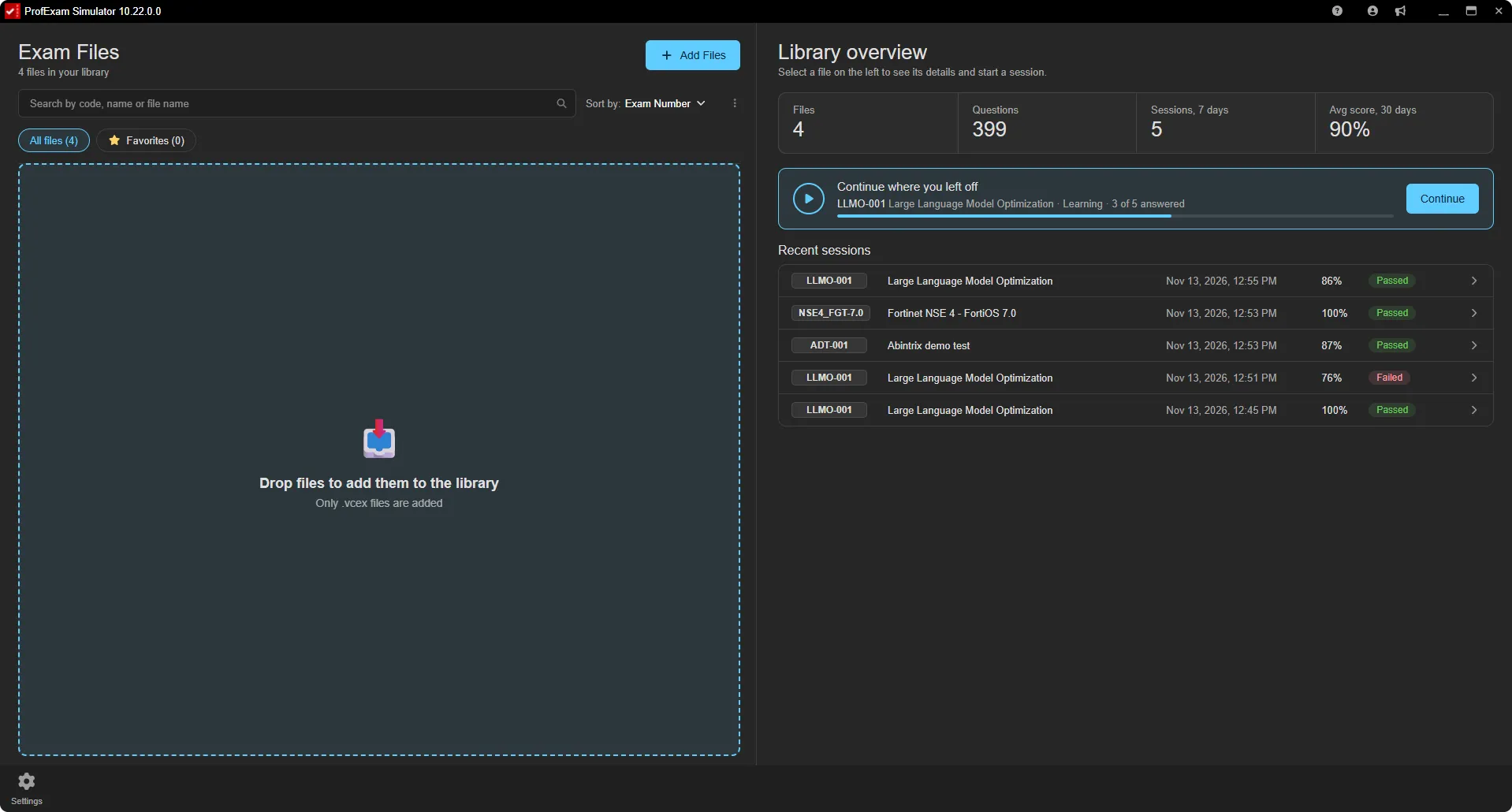
The home screen now gives you a clearer picture of your progress. Select an exam in the library, and its card opens on the right with three tabs:
- Overview: how many sessions you've taken, your average score, a chart of your attempts, and a button to pick up an unfinished session right where you left off;
- Saved Sessions: your saved sessions with their progress;
- History: every finished attempt with its score and a Passed / Failed mark.
With no exam selected, the app shows an overview of your whole library: overall statistics and recent sessions. Start a new session with the Start New Session button or by double-clicking an exam in the list. Library search now finds exams by their code as well.
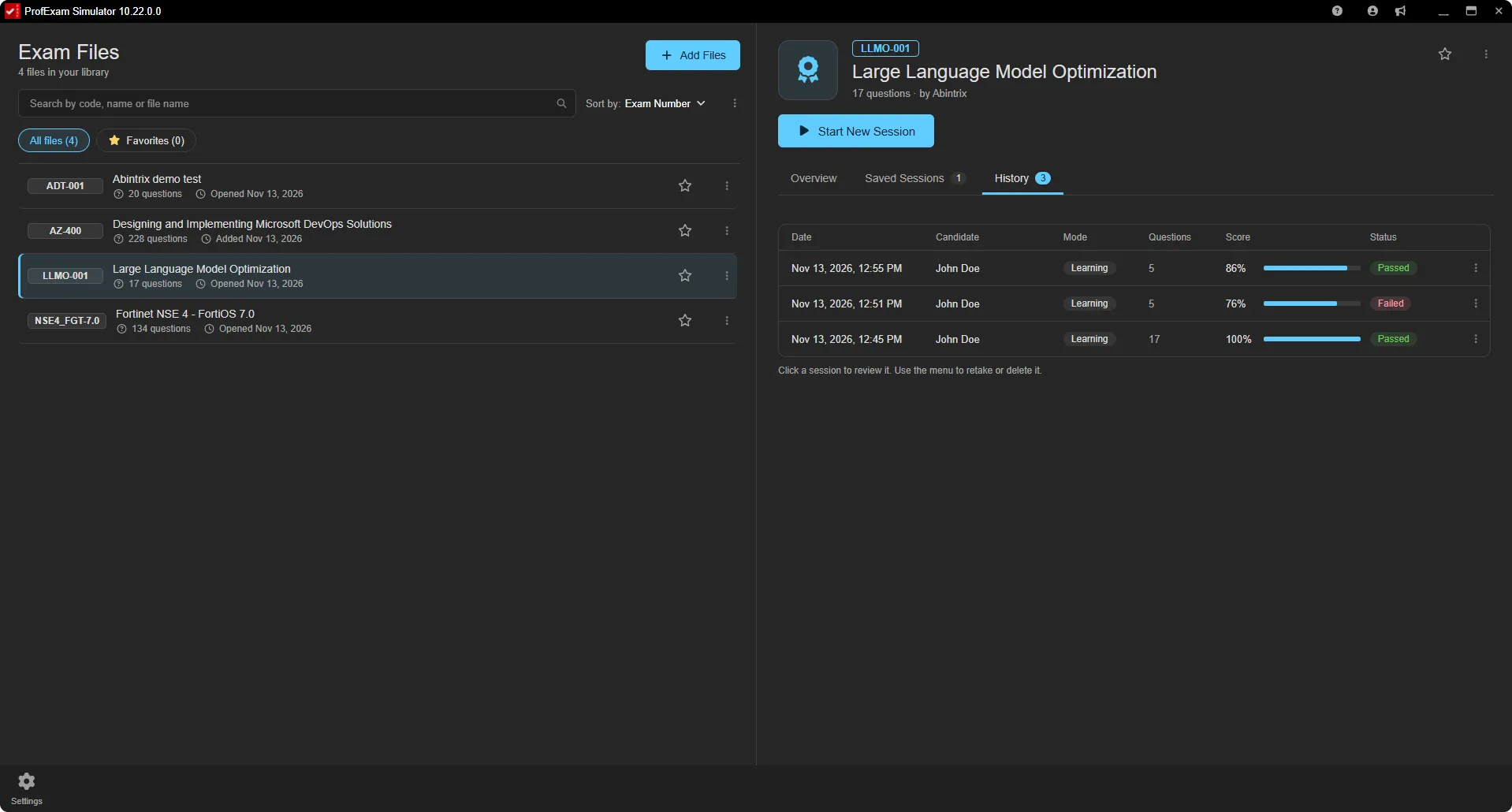
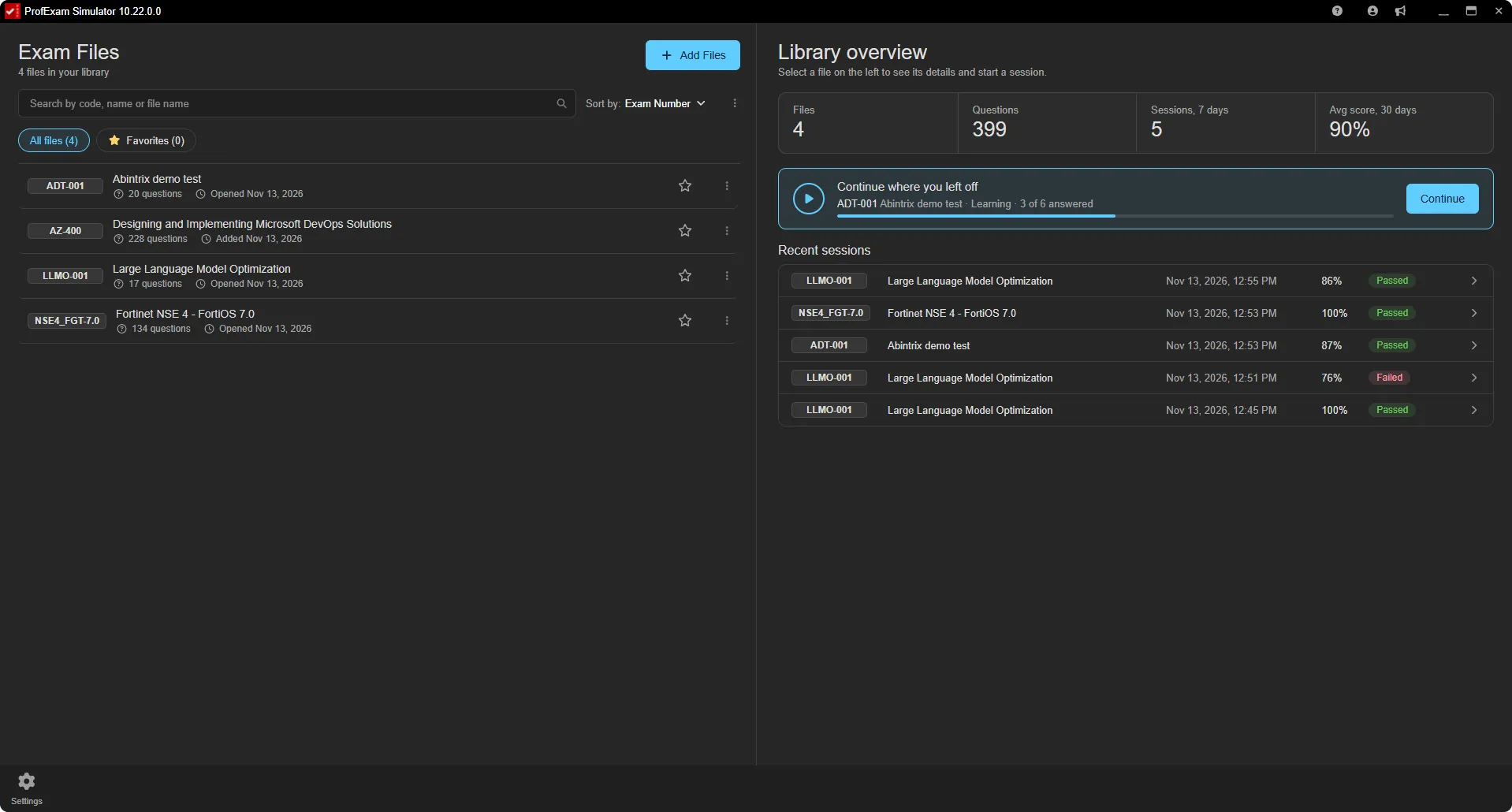
All the other windows have a new look too, in both the light and the dark theme.
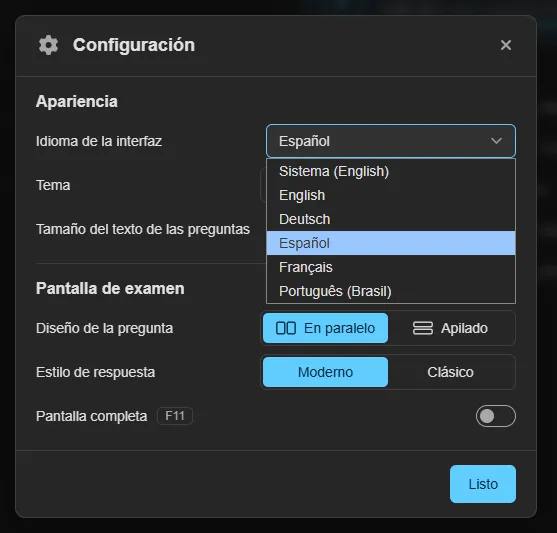
The interface in your language
ProfExam Simulator now speaks English, German, Spanish, French and Brazilian Portuguese. By default it uses your system language, and you can change it in Settings. Date formats follow the selected language. Exam content is not translated: questions stay in their original language.
Practice on missed questions
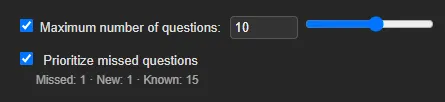
The session setup has a new option, Prioritize missed questions. When it's checked, the app builds the session so that it includes more of the questions you find difficult and fewer of the ones you already know.
The app keeps a score for every question: +1 for a correct answer, −1 for a wrong one. Missed questions are picked first, but they take up no more than half of the session. The rest are picked at random, with well-learned questions appearing less often. They never disappear completely, though: they come back from time to time to check that you haven't forgotten them. One random slip after a long run of correct answers doesn't make a question hard, and a mistake you've fixed doesn't stay on the list forever. And the more often you practice, the more accurately the app sees your gaps.
Points are calculated from your entire session history, including sessions taken before the update, so the feature works right away.
To learn more about how the app scores questions and builds a session, read Tracking Missed Questions.
Adding exams is easier
Just drag exam files onto the library list, several at once if you like. You can also click Add Files (or press Ctrl+O / Cmd+O) and select multiple files in the dialog. Files are added to the library instantly, and if an exam has a password, the app will ask for it when you first open it.
To move an exam to another computer, choose Save As… from the file menu in the library.
Update right from the app
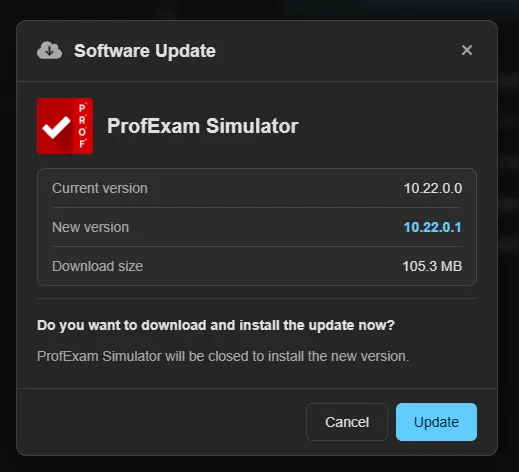
When a new version is released, an indicator with its version number appears in the window title bar. Click it to open the update window. On Windows you can download and install the update without leaving the app. On macOS and Linux the update window shows download links.
And more
- The app remembers the window size and position, as well as full screen mode.
- Case Study: all materials are now on a single page, and the text scales with the font size setting.
- Session history shows the candidate name.
- If an exam can't be opened, the app tells you why: the file is missing, access is denied, or the file is in use by another program. You can remove such an exam from the library right away.
- The activation window points out empty fields and no longer hangs on network errors.
- Improved security.
- Bug fixes:
- in some exams, questions were displayed blank;
- repeating a session from history brought back answers from the previous attempt;
- an invalid time value could make the timer run out after a few seconds;
- the Settings window sometimes didn't mark the current theme;
- drop-down lists looked light in the dark theme.
How to update
Download the new version from the download page or update right from the app. Your library, history and settings will be kept.
We'd love to hear your feedback: send it to us through the Feedback window in the app.