ProfExam Creator now has a built-in AI Chat. It's an assistant that sees your open test and can edit it. Ask it in plain words and it writes new questions, checks answers, adds explanations and fixes typos. It can use Claude, OpenAI or a local model through Ollama.
Making tests for your students is one use. You can also use it to learn on your own. Pick any topic and any difficulty, and in a minute you have a practice test to study with in ProfExam.
How to set it up
- Open AI Chat with the ✨ button on the right side of the toolbar, through Document → AI Chat, or with Ctrl+Alt+I. The chat opens as a panel on the right.
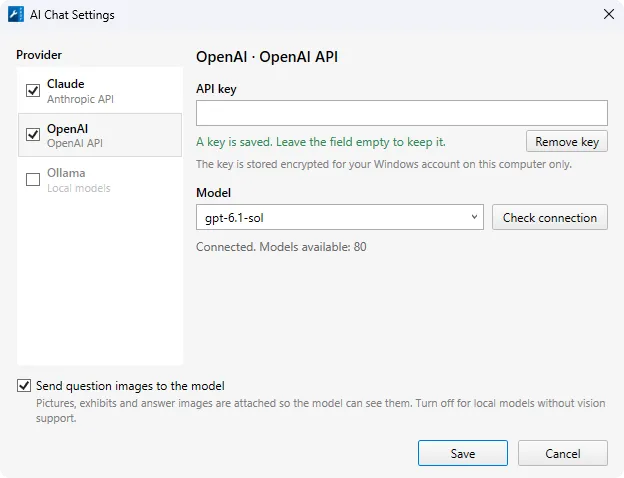
- Click Set up AI provider. The AI Chat Settings window opens.
- Choose a Provider:
- Claude (Anthropic) or OpenAI: paste your API key. The key is stored encrypted, only for your Windows account on this computer.
- Ollama: a local model that runs on your own computer, so your document isn't sent anywhere. Enter the Ollama server address and pick a model that supports tool calling (for example qwen3, llama3.1, mistral-nemo).
- Click Check connection, then choose a Model from the list.
- If you like, turn on Send question images to the model so the AI can see pictures and exhibits. Turn it off for local models that can't read images.
- Click Save. That's it.
Before it sends anything to a cloud provider for the first time, the chat asks you to confirm. You can switch the provider or model right in the chat, and the conversation keeps going.
Learn any topic with your own practice tests
The best way to remember something is to test yourself on it. With AI Chat you don't need a ready-made question bank. Just say what you want to learn:
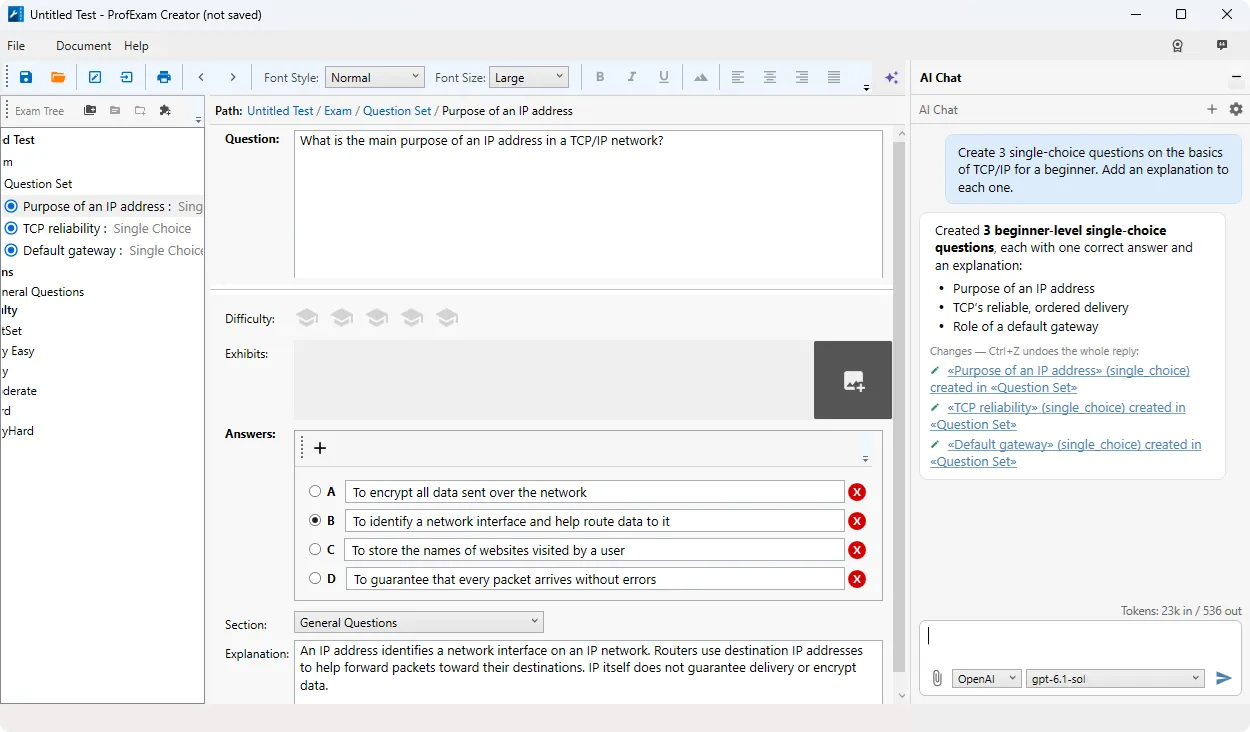
- "Create 20 single-choice questions on the basics of TCP/IP for a beginner. Add an explanation to each one."
- "Make a hard test on the French Revolution: 10 multiple-choice questions and 5 yes/no questions."
- "I'm preparing for an AWS Solutions Architect exam. Write 15 scenario questions about VPC and security groups, at the level of the real exam."
- "Create 10 match questions: English irregular verbs and their past forms."
- "Write fill-in-the-blank questions on Python list methods, from easy to hard."
- "Make reorder questions with the steps of cell mitosis in the right order."
- "Write an essay-free biology test for 9th grade on photosynthesis, mix of question types."
The AI can create all the main question types: single and multiple choice, yes/no, fill in the blank, match, reorder statements, sentence ordering, and more. It also sets the difficulty (from very easy to very hard) and writes explanations, so you learn why an answer is right, not only which one.
Learn from your own materials. Attach a PDF, a Word (.docx) or RTF file, a text file or an image, or paste a screenshot with Ctrl+V:
- "Here are my lecture notes. Make a test of 25 questions to check that I understood them."
- "Write questions from chapter 3 of this PDF only, medium difficulty."
- "Turn this screenshot of the table into match questions."
Grow as you learn:
- "I keep getting the questions about subnetting wrong. Add 10 more on that, harder."
- "Make the easy questions in this test harder."
- "Add a short explanation with an example to every question that doesn't have one."
Your assistant for editing tests
AI Chat also helps with tests you already have:
- "Check the correct answer of this question."
- "Fix typos in this question and its answers."
- "Write an explanation for this question."
- "Find questions about networking and list them."
- "Set the difficulty for every question in this exam."
- "Find questions that repeat each other."
Safe by design
- One Ctrl+Z undoes it all. Everything the AI changes in one reply is a single step, so a single Ctrl+Z rolls it all back.
- You can see every change. Under each reply there's a list of what was changed.
- Privacy is your choice. Use a local Ollama model and your test never leaves your computer.
Update ProfExam Creator, open AI Chat with Ctrl+Alt+I, and turn the next topic you want to learn into a test.